Content

Showing posts with label Step By Step Configuring. Show all posts

Tuesday, February 7, 2012

How to use read (Sinhala Unicode) in your PC


                Hay guys after very long time im about to teach you how to read Sinhala (Unicode) web pages on the internet, what is the Unicode let’s have a look at that first, font means the graphical representation of the computer signals that equals to human character (read http://a-zpoint.blogspot.com/2011/11/how-to-install-fonts-in-your-computer.html) so if you used the computer to show the character then you need a table that matches the pattern and the human known symbol that table calls the ASCII table it used 8bits to represent a one single character so as u know 8bits or 8 position in the binary values can only contained 256 different patterns (2*2*2*2*2*2*2*2 = 256) that’s mean 8bit ASCII can only represent 256 human recognizable characters only. 

                Imagine you need to type a letter in Sinhala or Tamil or using another local language except English, When you’re using a personal pc then it doesn’t matter u can represent the English character set using Sinhala character set by using font files I think that is familiar to you. If you miss the font you will get freak symbols on your document.

The problem is when you work with the global environment like the internet you can’t remove the ASCII set from your web host, so if you used the local character then you have to give the download link to fonts that u used in ur web page that’s a little complex thing and it’s not standard way to deal with the language, the Unicode is standardized to solve that problem it’s a 16 bit character set that can hold 65536 symbols (in utf8 Unicode system)

Explanation about Unicode in http://www.unicode.org/
“The Unicode Standard is a character coding system designed to support the worldwide interchange, processing, and display of the written texts of the diverse languages and technical disciplines of the modern world. In addition, it supports classical and historical texts of many written languages.”

When you using Sinhala on the internet you have to download the Unicode layout for ur computer because the windows or Mac operating systems are designed to work with the ASCII character layout therefore you have to install the additional support to the computer to recognized the local keyboard layout otherwise it can’t show you the font and you will see box with hex codes inside of it.
If you can see the my name in this double quotas you have the Sinhala Unicode set if cant see than download it following rest of the details in hear

“කසුන් චාමර ද අල්විස්”

How to search for the Unicode appropriate for ur system
 
                Go to the browser and go to search section or go to the search engine and type “Sinhala Unicode download for xp sp2” if you need Tamil Unicode for the windows 7 then “Tamil Unicode download for windows 7” or any other O/S or any Unicode system I think u get the idea hear, ok search for  win xp sp2 Unicode  system

Or download it from this links
Click on this link above and go to the page then select the ur computer operating system it will download automatically

  
select your operating system

select your service pack (eg. Windows XP Service Pack 2)

 select save file

it will download to your desktop you can fined the location by right clicking on it and select "Open containing folder"

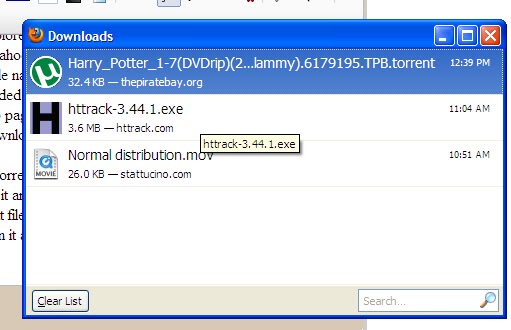
After download double click on the downloaded exe file in download folder or Firefox download window and double click on the exe file that you downloaded and follow the steps below
Double click on the downloaded file or double click on the download link on the Firefox download windows


remember to save and close all the works and then click OK

it will takes little time to install on your computer

and then it will ask you to install sinhala enabling pack on your PC
 click Next

Check agree button and click Next

finally click Finish


  After install select Start --> Turn off computer --> Turn off (start menu icon --> 'u' -->' r') 

After restart you can see language bar on bottom right corner of your task bar and language icons on the system tray.


Now you can start typing and wive any Sinhalese and Tamil web page on the internet

to start typing in Sinhala first you need to know the sinhala key layout download Wijesekara Sinhalese keyboard layout hear and take a printout

(click on this image and when its open larger right click on it and select save as)

Now Lets start typing

Font changing is unique to the window that u currently use, its mean if you used note pad to type the sinhala Unicode u have to open the Notepad and when its on focused then left click on the language bar and change the language type using popup selector as shown in picture below


remember the language change is only applied to the selected window only if you have to type in sinhala or tamil in the Word document on the same time you have to change the language type like this when the word document is selected


Enjoy chatting in sinhala on Facebook and other social networks and improve your typing skill with sinhala it will open lot of job opportunity for you.

Wednesday, September 7, 2011

Error "Setup did not find any hard disk drives" during XP Installation

       installing Windows Operating System on SATA for those owning older mainboards with SATA support an extra step is required while attempting to install Windows XP. Windows XP does not provide drivers for all the SATA controllers, therefore, during the installation procedure, the user need to insert a floppy with the drivers that came in the package along with the motherboard.


The real problem comes with the Mechines like Notebook, Laptops and PC's that doesn't have a floppy disk drive connected. Actually i had that same problem and it makes me crazy for a while, im Expert installing Microsoft Windows on a PC in my life time i have installed O/S's more than 1000 times,but this thing makes really headache to me, Finally I found the answer and hear its for you.

  Install Windows XP on SATA (Laptop) without a Floppy (F6 Option)
       Very first before you begin the tutorial you need collect following tools(Software and CD's) and a good Computer that runs O/S Windows XP (Because in this Lesson i used Win XP SP2 ) and a CD Writer.
  1. Download Microsoft .NET Framework that suitable for your computer and Install it.
  2. Download N-Lite (He is the Goad ho doing Hole work) from http://www.nliteos.com and Install it.
  3. ( if you found a floppy image of drivers you need Total Commander to extract it )
  4. Download Total Commander from http://www.ghisler.com and Install it.
  5. Find on internet for suitable SATA Driver file for your computer,Download it and save it some wear safe.
  6.  Get a working copy of  Windows XP Bootable CD (it will be genuine or not it doesn't matter, only matter is the Bootable CD is working properly on other PC's)
  7.  
  8. ( This Step is Optional and its just for Safety - for test the boot image)
  9. Download Virtual PC ( VPC 32bit , VPC 64bit ) From http://www.microsoft.com and Install it and Create a Virtual Machine on currant pc for test your Bootable CD
Okay, Lets begin the work
  1. Install Downloaded Software's  on your machine
  2. Put Bootable CD to your CD rom
  3. Start N-Lite
  4. Staring N-Lite
  5. Select Botebale CD 
  6. Select Windows Bootable CD

  7. After Selecting CD Below Dialogue box Will appear and it ask the location to copy the files to Heard Disk

  8. Create Folder To Copy files to the Hard Disk
  9. Select Folder To Save Files on

  10. N-Lite copying the files to the computer it will take a little time

  11. N-Lite has finished copying files to the computer you can see the details of your files, Click Next

  12. Click Next to skip this window and click next

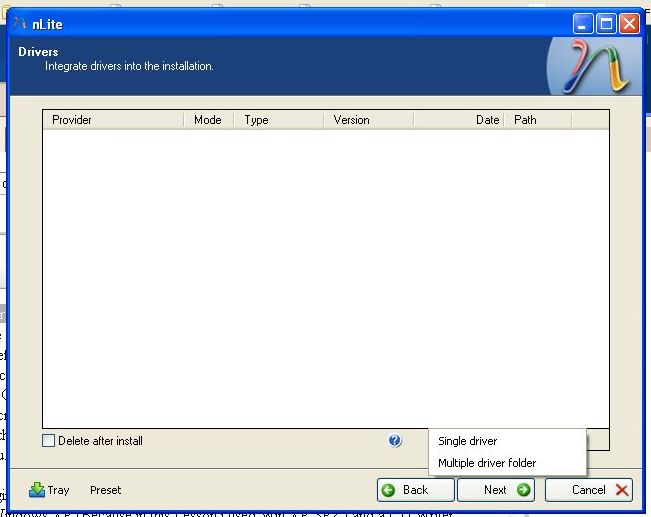
  13. Tear is a meny options on this window but in this case we only need to add the SATA drivers to the XP CD thats all so select Drivers in integrate category and we also need to create the image file that we can burn to the CD later.

  14. Click on insert button and select multiple driver folder


  15. Select the location of downloaded drivers

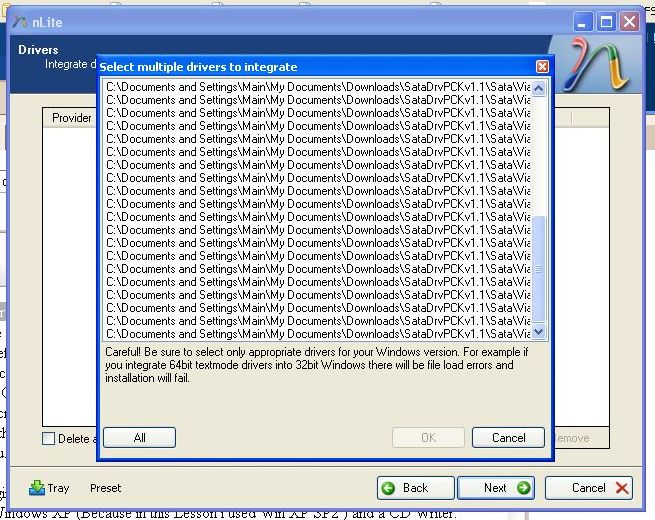
  16. Click All to Select all the drivers

  17. Use CTRL key to add multiple drivers, remember select only Win XP (32bit or x86) drivers for Win XP Bootable CD and also always select "text mode drivers" for Bootable CD.
  18. CTRL to add separate drivers

    After adding all the Drivers
  19. After that it will ask you to start processing press yes and N-lite will create Bootable disk


  20. Click on "make ISO" and select the path to save the image file

Select Location to Save the Bootable image file

  • Load the Image File to Virtual PC and check whether Bootable image is working properly or not if its working properly you are redy to boot your PC without F6 option or Disk unrecognized problem. 

    Friday, August 12, 2011

    How to Download A Torrent ? ? ? ?

                 How to Download a torrent it was a big matter and a problem that i had 3 years ago, i had a frend name calld 'Yasitha ' he taught me how to do that and hear it is for U guys ....


    First u Need to download Torrent Client software to your machine and install it you can Download torrent client Software by Visiting following Url's,
    µTorrent 
    Azureus 
    BitTorrent
    after you installed one of those software you have to fined the torrent from the web
    1. go to your web browser Firefox, chrome, i explorer
    2. go to your afflated search Engine Ex: Google, Yahoo, MSN
    3. search your file like this without quotas "your file name + torrent" Ex: "harry potter 1 + torrent"
    4. you will fined the links of sites that torrent included
    5. fallow the one of link it will redirect you to web page that link contained
    6.  on that web page find the link named like "Download this torrent" or "Download .torrent" anything lyk that
    7. click on it and it will ask you to download the torrent file Remember this is not the thing that you want it just a linker to the file that you need, now save it any wear as your wish you can use this file as much u want through torrent client to download the that file
    8. when file has finished download double click on it and your torrent client will pop-up with the download dialog box
    9. in the dialog box select the disk for save the document and click OK - you r done . . .
    10. remember this is not direct download , downloading speed will depend on the seeds(that means the file holders / uploaders)
    11. after you download the file please be gentle to keep that file in the torrent client list to be uploaded .
     Thereis another way to download and increasing downloading speed of file in torrent ill tell you that in my later post.
    Buy just for now. <3

    Actually this Post for my Brother,    . . . . :-D